



Listing Verification: Why ‘Submitted’ Is Not the Same as ‘Accepted’
Listing verification is the step that confirms a marketplace actually accepted your listing and that buyers can find it. Submitting only sends the listing to the marketplace. Acceptance means the marketplace published it as an active offer.
Assuming that a successful upload means an item is live costs sales, especially across hundreds of SKUs and several channels. This guide explains each stage, why listings get stuck between them, and how to check the outcome on Amazon, Walmart, eBay and your own storefront.
Key Takeaways
- Submitted, accepted and findable are three different states, and listing verification checks each one.
- Every marketplace shows acceptance in its own seller dashboard, with its own status labels.
- Listings that are never accepted usually fail on data, category or account rules.
- Accepted listings that stay hard to find usually have a stock, filter or search problem.
- At scale, verify each channel’s outcome separately instead of assuming one successful upload covers them all.
Submitted, Accepted and Findable: Three Different States
Sellers often lump everything together as “listed.” In practice, a listing passes through three states, and each one needs its own check.

Submitted
You, a feed or an integration sent the listing to the marketplace. On its own, this proves nothing about whether it went live.
To confirm it, look for errors on the listing form, in the feed or upload report, or in your integration’s submission results.
Accepted
The marketplace processed the listing and published it as an active offer. It usually has a marketplace identifier and an active status in the seller dashboard.
To confirm it, open the inventory or listings view for that channel and find the item by SKU or identifier.
Findable
The active listing can actually be reached by a buyer, through search, browse or a direct link. Acceptance does not always mean the item appears in search right away.
To confirm it, search for the item the way a buyer would, and open the live product page.
What “Accepted” Looks Like on Each Marketplace
Every channel has the same three states, but each one labels and reports them differently. The examples below describe the general pattern at the time of writing. Status names and menus change, so check the seller documentation for each marketplace before you rely on a specific label.
Amazon
In Seller Central, the inventory views show the status of each listing. A listing can be active, inactive or suppressed, for example when required information is missing or a detail page issue needs attention.
An uploaded feed can also return processing errors for individual SKUs. A clean upload confirmation for the file as a whole does not mean every SKU in it went live. If you sell on Amazon through an integration, our Amazon integration overview explains how listings and inventory connect.
Walmart Marketplace
In Walmart Seller Center, the items view shows the status of each item. Items can be published, in progress or unpublished, and an unpublished item usually comes with a reason you can review.
Item setup can also take time to process after submission. Check the item status rather than the submission itself, and read the Walmart seller help for the current meaning of each status. The Walmart integration page explains how the integration works with the channel.
eBay
In Seller Hub, an accepted listing has an item number and appears under your active listings. Drafts, scheduled listings and ended listings each have their own view.
If eBay removes or restricts a listing for a policy reason, it generally notifies you by email or in Messages. The eBay integration overview shows how listings sync with the channel.
Shopify and Your Own Storefront
On your own storefront, “accepted” usually means the product is set to active and is available on the sales channel where buyers shop. A product can exist in the admin as a draft, or be active but not published to every sales channel.
Why Listings Get Stuck Between Submitted and Accepted
A listing that is submitted but never accepted almost always failed a rule. The exact rules differ by marketplace and category, but the causes fall into a few groups.
Missing or Invalid Product Data
Each channel and category has its own required attributes. A missing brand, an invalid product identifier, no main image or an unsupported value in a required field can stop a listing from being accepted.
- Check the error or status reason the marketplace returns for that SKU.
- Compare the listing against that category’s current requirements in the seller documentation.
- Fix the data at the source, so the same error does not return on the next update.
Category and Account Restrictions
Some categories and brands require approval before you can list in them. Accounts can also have selling limits or restrictions that block new listings.
These issues usually show up as a clear error or account notice rather than a silent failure, so read every rejection message before you resubmit.
Policy Reviews and Holds
Marketplaces can hold, suppress or remove listings that appear to break their rules, such as prohibited products, rights-owner complaints or duplicate offers. A listing can also be accepted first and pulled later.
That is why listing verification is not a one-time check at upload. Status can change after the fact.
Accepted but Still Hard to Find
An active status in your dashboard does not guarantee that buyers see the item. Listing verification therefore needs a second check: can a buyer actually reach it?

Search Can Lag Behind Status
A new or revised listing may take some time to appear in marketplace search, even though it already shows as active. How long that takes varies by marketplace and is not something sellers control.
If an active item still cannot be found well after a reasonable wait, treat it as an issue to investigate rather than normal lag.
Out of Stock or Inactive Offers
An item with zero quantity can stay in your catalog while being hidden from buyers or marked as unavailable. On some channels, an out-of-stock offer moves to an inactive status until you add stock.
Check inventory first whenever an “accepted” listing seems to have disappeared.
Buyer Filters, Shipping and Location
Buyers often narrow results by brand, size, condition, price or delivery options. A listing with blank attributes, the wrong category or shipping settings that exclude the buyer’s region may not appear for that search.
Search for the item the way a buyer would, with common filters applied, to spot these gaps.
Data Quality and Relevance
Each marketplace decides for itself how it orders search results, and those systems are not fully public. Complete, accurate titles, categories and attributes give a listing more to match on, but no seller can control ranking.
For practical guidance on improving content, see our page on listing optimization.
A Simple Manual Listing Verification Routine
For a small catalog, a short routine per channel catches most problems. Run it after every new upload and after bulk price, inventory or content changes.
- Check the submission result. Read the upload, feed or integration report for errors by SKU.
- Check the channel status. Find each SKU in that marketplace’s inventory or items view and confirm it is active or published.
- Read every status reason. For inactive, suppressed or unpublished items, note the reason the marketplace gives.
- Check stock and price. Confirm the quantity and price on the live offer match your catalog.
- Search as a buyer. Open the live product page and try a typical buyer search.
- Recheck later. Look again after a few days, because policy reviews and stock changes can alter status after acceptance.
Listing Verification at Scale Across Channels
The core lesson scales directly: never treat a listing submitted as a listing accepted. What changes at scale is that manual spot checks stop working.
Why Spot Checks Break Down
With thousands of SKUs on several marketplaces, one bulk update can create hundreds of separate outcomes. Some SKUs go live, some fail on one channel only, and some get pulled days later.
Checking a sample hides exactly the listings that need attention. A listing that failed without anyone noticing stays missing until someone looks.
Verify Each Channel Separately
A product that is active on Amazon can be unpublished on Walmart and missing a required attribute on eBay. Treat every channel as its own outcome, with its own status and its own reason when something fails.
How SureDone® Helps With Listing Verification
SureDone, a multichannel e-commerce platform, keeps product data in one catalog and lists it to Amazon, eBay, Walmart, Shopify and other channels. That gives you one place to fix data once instead of channel by channel.
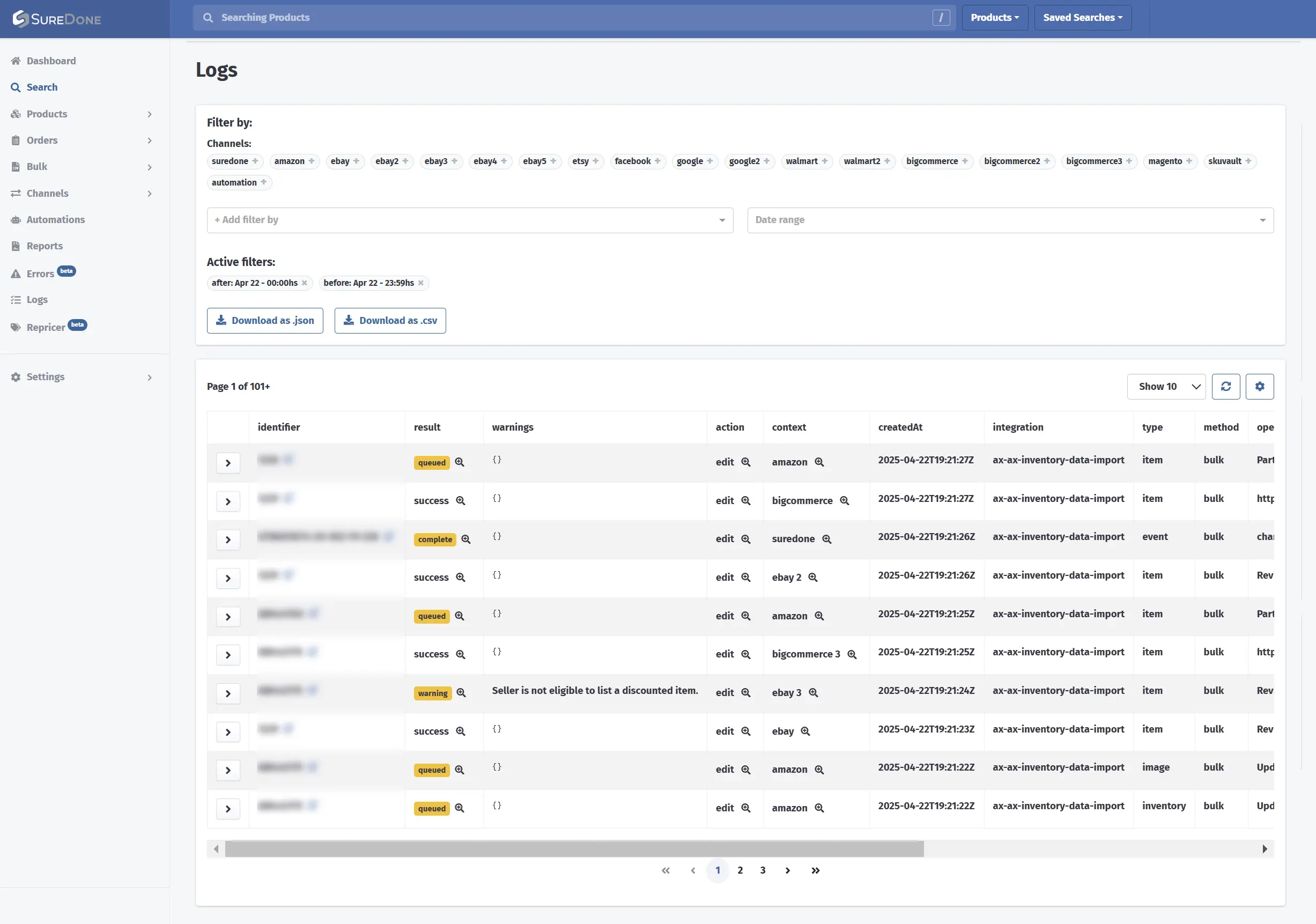
The Logs view in SureDone lists each action per channel with its result, such as queued, success or warning, so you can check every channel outcome separately.
One Validated Product Record
With Product & Listing Management, titles, attributes, images and identifiers live in one record. Fixing a data gap there helps prevent the same error from repeating on every channel.
For larger corrections, Bulk Upload & Export lets you update many products at once.
Readiness Checks Before Anything Is Submitted
SureDone AI Listing treats submission and acceptance as separate steps. It optimizes titles and descriptions, proposes category and marketplace field mappings, and validates readiness, flagging gaps before a listing is sent.
It then builds a scoped listing plan that shows which products, channels and actions are involved. In SureDone, this agent is named Taska AI.
Human Approval and Per-Channel Outcomes
Every publish or end action stays behind your explicit approval. After publishing, each channel’s outcome is verified separately, so you can see which items went live and which need attention.
Acceptance and search ranking remain up to each marketplace. What changes is that you no longer have to assume the outcome.
Frequently Asked Questions
What Is Listing Verification?
Listing verification is the process of confirming that a marketplace accepted a listing you submitted and that buyers can find it. It means checking the submission result, the item’s status in each seller dashboard, and the live product page.
What Is the Difference Between a Submitted and an Accepted Listing?
A submitted listing has only been sent to the marketplace. An accepted listing has been processed and published as an active offer, such as an active listing in Amazon Seller Central, a published item in Walmart Seller Center or an active listing in eBay Seller Hub.
Why Is My Listing Active but Not Showing Up?
Common reasons include search lag after publishing, zero stock, blank attributes, the wrong category, shipping settings or buyer filters. Check stock and attributes first, then search for the item the way a buyer would.
Can a Marketplace Remove a Listing After Accepting It?
Yes. Marketplaces can suppress, unpublish or remove listings after a policy review, a rights-owner complaint or a data problem. That is why it helps to recheck status after acceptance, not only at upload.
How Do I Verify Listings Across Several Marketplaces?
Check each channel separately, because each one has its own statuses and rules. For larger catalogs, many sellers centralize product data and use a platform that reports each channel’s outcome instead of assuming it.
Want every listing verified instead of assumed? Request a demo to see how SureDone checks each channel’s outcome on your own catalog.
