



From Product Listing Errors to Verified Fix: The Listing Remediation Loop
Product listing errors rarely mean your product is unsellable. On Amazon, eBay, Walmart or a Shopify sales channel, an error usually means one detail didn’t meet that channel’s requirements for the category at the time you submitted it.
This guide explains the most common causes and walks through the listing remediation loop: detect the error, diagnose the root cause, fix the data, resubmit the listing and verify that the fix held. The loop works the same way on every channel.
Key Takeaways
- Most product listing errors trace back to one gap: a missing required attribute, an invalid category, an image problem, an identifier mismatch, a restricted product or a pricing rule.
- Treat every rejected listing as a loop: detect, diagnose, fix, resubmit and verify.
- Fix the source product record, not only the live listing, or the next sync can bring the error back.
- A listing is only fixed once each channel has accepted it. One channel’s success says nothing about another.
- Requirements differ by channel and category and change over time, so check each marketplace’s official seller documentation.
What Causes Product Listing Errors on Marketplaces?
The trigger is often a single field, but the root cause usually sits in your product data, your account settings or the connection between your systems and the channel. The categories below are common across marketplaces. The exact rules and messages vary, so treat them as starting points and confirm details in each channel’s help pages.
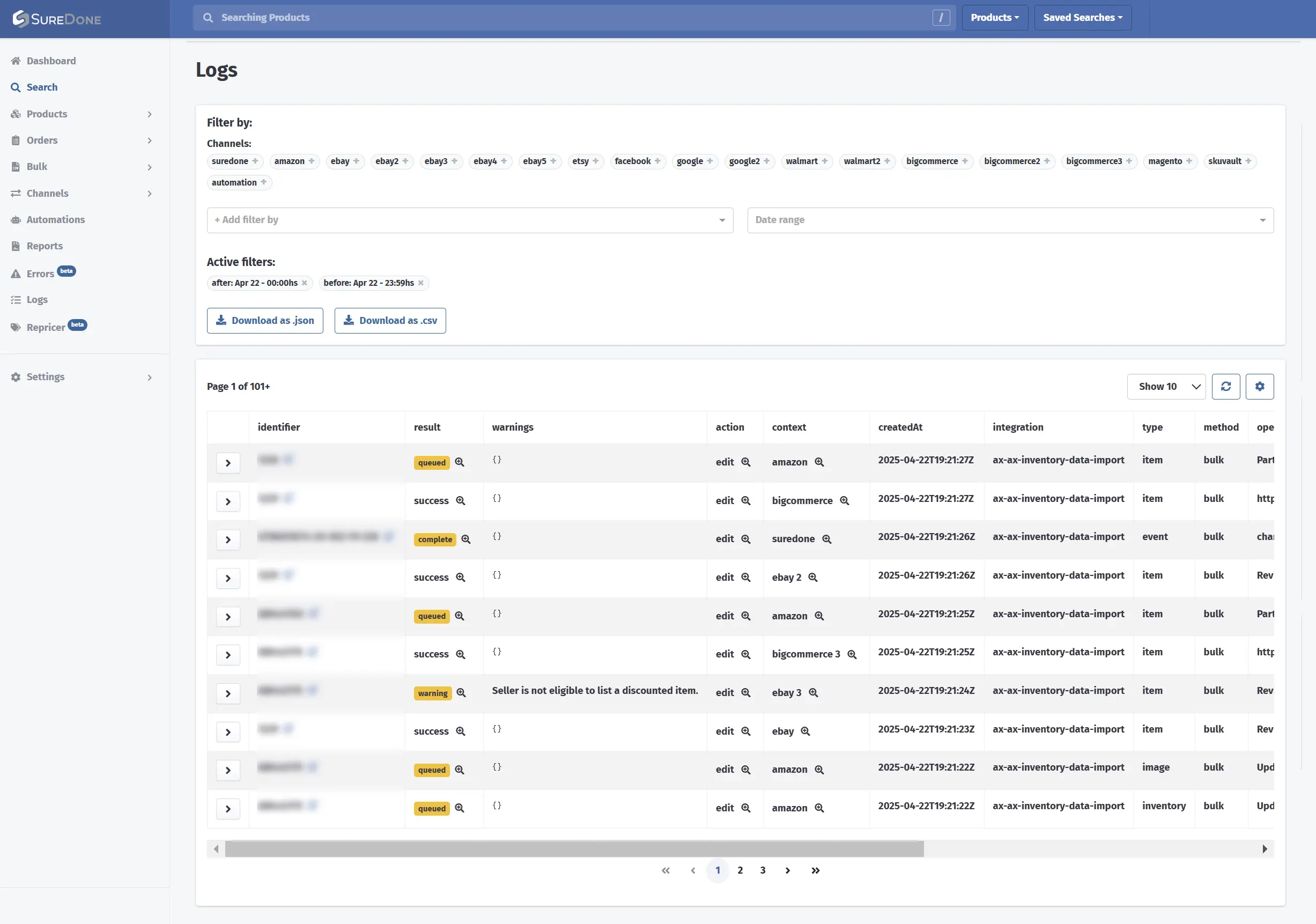
The Logs view in SureDone shows the result of every action per channel. Here, a warning explains why one eBay update was not accepted.
Missing Required Attributes
Each channel sets required fields per category or product type, such as brand, size, color or material. If one is empty or uses a value the channel doesn’t accept, the submission fails or the listing is suppressed.
Invalid or Mismatched Category
A product mapped to the wrong category inherits the wrong set of required attributes. It can also land in a category that no longer accepts new listings, or one whose rules don’t fit the item.
Image Policy Problems
Marketplaces publish image rules covering things like minimum size, background, watermarks and text overlays. An image that breaks the rule for that category can block or suppress the listing.
Identifier and GTIN Mismatches
Product identifiers such as a UPC, EAN or other GTIN (Global Trade Item Number) must match the product. A barcode that belongs to a different item, a duplicate or a missing identifier where one is expected is a frequent cause of rejections.
Restricted or Gated Products
Some categories, brands or product types need approval before you can list them. Without that approval, the listing fails no matter how complete the data is.
Pricing Rules
Channels can flag prices that look far out of line with a reference price, or that fall outside a range the channel accepts. The fix is usually to review the price and the reason it was set that way.
How the Same Gap Shows Up on Each Channel
One missing attribute can produce a different message on each channel:
- Amazon: Seller Central reports a missing or invalid attribute for the product type.
- eBay: the listing editor or Seller Hub flags a missing required item specific.
- Walmart: the item shows an error in its feed results or item status in Seller Center.
- Shopify: your store usually saves the product, but a connected sales channel or product feed can flag the gap.
The Listing Remediation Loop: Detect, Diagnose, Fix, Resubmit, Verify
Fixing one flagged listing is straightforward. Fixing the same product listing errors across hundreds of SKUs and several channels, every week, is where teams lose hours.
A remediation loop turns that reactive scramble into a repeatable routine:
- Detect. Notice the failure quickly, from a channel’s seller interface, a feed or API error report, or your platform’s channel status.
- Diagnose. Read the full message and isolate whether the product data, the account or the channel caused it.
- Fix. Correct the underlying data in your source product record.
- Resubmit. Revise or republish the listing, in bulk when the same error affects many SKUs.
- Verify. Confirm that each channel accepted the change. If it failed again, go back to step 1 with the new message.
Step 1: Detect the Error
Most sellers first notice a problem through a warning in a seller interface or a rejected row in a feed report. Speed matters, because a listing that silently failed is a product buyers can’t find.
Where Errors Surface
- Seller interfaces such as Amazon Seller Central, eBay Seller Hub and Walmart Seller Center.
- Feed processing reports and API responses.
- Listing status in your multichannel platform, when you manage several channels from one catalog.
Reading Vague Messages
Some messages name the exact field. Others are generic and only say something went wrong while saving. A vague message usually calls for a look at the full product record rather than a single field.
Step 2: Diagnose the Root Cause
Diagnosis starts with isolating what actually failed. A structured order saves time and stops you from editing fields that were never the problem.
- Read the full message. Note the field, category or policy it names before you change anything.
- Check the product data. Look at required attributes, category mapping, images, identifiers and price.
- Check account-level factors. Category approvals, policy settings or account holds can block listings regardless of item data.
- Rule out a channel-side issue. If many listings fail at once with no data change, check the marketplace’s official status or seller help pages.
- Look for patterns. The same message across many SKUs usually points to one shared cause, such as a template or a supplier feed.
If the error persists, search for the message in that channel’s seller documentation. Rules change, so rely on the current official guidance rather than older forum posts.
Step 3: Fix the Data at the Source
Make each fix in your source product record, not only on the live listing. Otherwise the next sync or bulk update can overwrite the correction and bring the error back.
Typical Fixes by Cause
- Missing attribute: fill in the value using the format the channel expects for that category.
- Wrong category: remap the product, then review the attributes the new category requires.
- Image issue: replace the image with one that meets the channel’s published image rules.
- Identifier mismatch: confirm the GTIN belongs to this exact product and variant.
- Restricted product: request approval through the channel, or hold the listing until you have it.
- Pricing rule: review the price against your cost and the channel’s guidance.
Step 4: Resubmit the Corrected Listing
Once the data is fixed, push the correction back by revising the live listing or republishing the failed one. First confirm that a bulk edit or stale template hasn’t blanked out other required fields.
When the same error affects many SKUs, fix them together. With Bulk Upload & Export in SureDone®, you can correct a field across many products in one spreadsheet and send the batch to your channels.
Step 5: Verify the Fix Held
Resubmitting is not the end of the loop. Many product listing errors return because nobody confirmed the result.
Check that the channel accepted the revision, the error is gone from its report and the corrected values appear on the live listing. If it failed again, take the new message back to step 1.
Verify Each Channel Separately
On a multichannel catalog, a fix that Amazon accepted says nothing about the same SKU on eBay, Walmart or Shopify. Each channel has its own rules, so check each outcome on its own.
Turn Repeat Causes Into Prevention
When a fix holds, note the root cause. A cause that keeps returning belongs in a validation check or rule that runs before the next submission. SureDone’s Automation Engine runs rule-based, no-code and low-code workflows, for example importing corrected supplier data on a schedule.
How SureDone AI Listing Supports the Remediation Loop
SureDone is a multichannel e-commerce platform that keeps one product record and connects it to Amazon, eBay, Walmart, Shopify and other channels. SureDone AI Listing, powered by Taska AI, adds AI support to several steps of the loop, while your team stays in control of every change.

Readiness Validation Before Submission
AI Listing validates readiness and flags readiness gaps before anything is submitted. That moves part of detection ahead of the channel, so you can close a gap before it becomes a rejection.
Proposed Category and Field Fixes
AI Listing proposes category and marketplace field mappings, and it can optimize titles and descriptions. It builds a scoped listing plan that shows which products, channels and actions are involved.
Your Team Approves Every Change
Proposals are not applied on their own. Every publish or end action stays behind explicit human approval, so your team reviews the fix before it reaches a channel.
Each Channel Outcome Is Verified Separately
After submission, AI Listing verifies each channel outcome separately. An accepted listing on one channel does not hide a rejection on another, which is exactly what the verify step needs.
AI Listing helps you work through the loop faster. It does not guarantee that a channel will accept a listing: accurate product data that meets each channel’s current rules is still what gets it accepted. To see the loop on your own catalog, request a demo.
Frequently Asked Questions About Product Listing Errors
Why do I keep getting product listing errors?
Repeat errors usually come from incomplete product data, a wrong category mapping, image or identifier problems, or a rule the channel has updated. If you fix only the live listing, the next sync can restore the old value. Fix the source record and check the channel’s current seller documentation.
Is there a known issue with listing on a marketplace right now?
Channels occasionally have outages or backend changes that affect many sellers at once. Check each marketplace’s official status or seller help pages for current notices. If only your listings fail, the cause is more likely your product data or account settings.
Why won’t a marketplace let me list an item?
Common reasons include missing required attributes, an invalid category, an image policy problem, an identifier mismatch, a restricted or gated product, or a pricing rule. Read the full message, compare your data with the channel’s requirements for that category and confirm your account has any approvals the category needs.
How do I avoid errors when revising a listing?
Check that the edit didn’t blank out other required fields, and make the change in your source product record. Validating readiness before you resubmit catches many gaps before the channel rejects the update.
Can AI fix product listing errors automatically?
SureDone AI Listing flags readiness gaps and proposes category and field fixes, but your team approves every publish or end action. It verifies each channel outcome separately. It supports the fix; it does not guarantee acceptance.
